
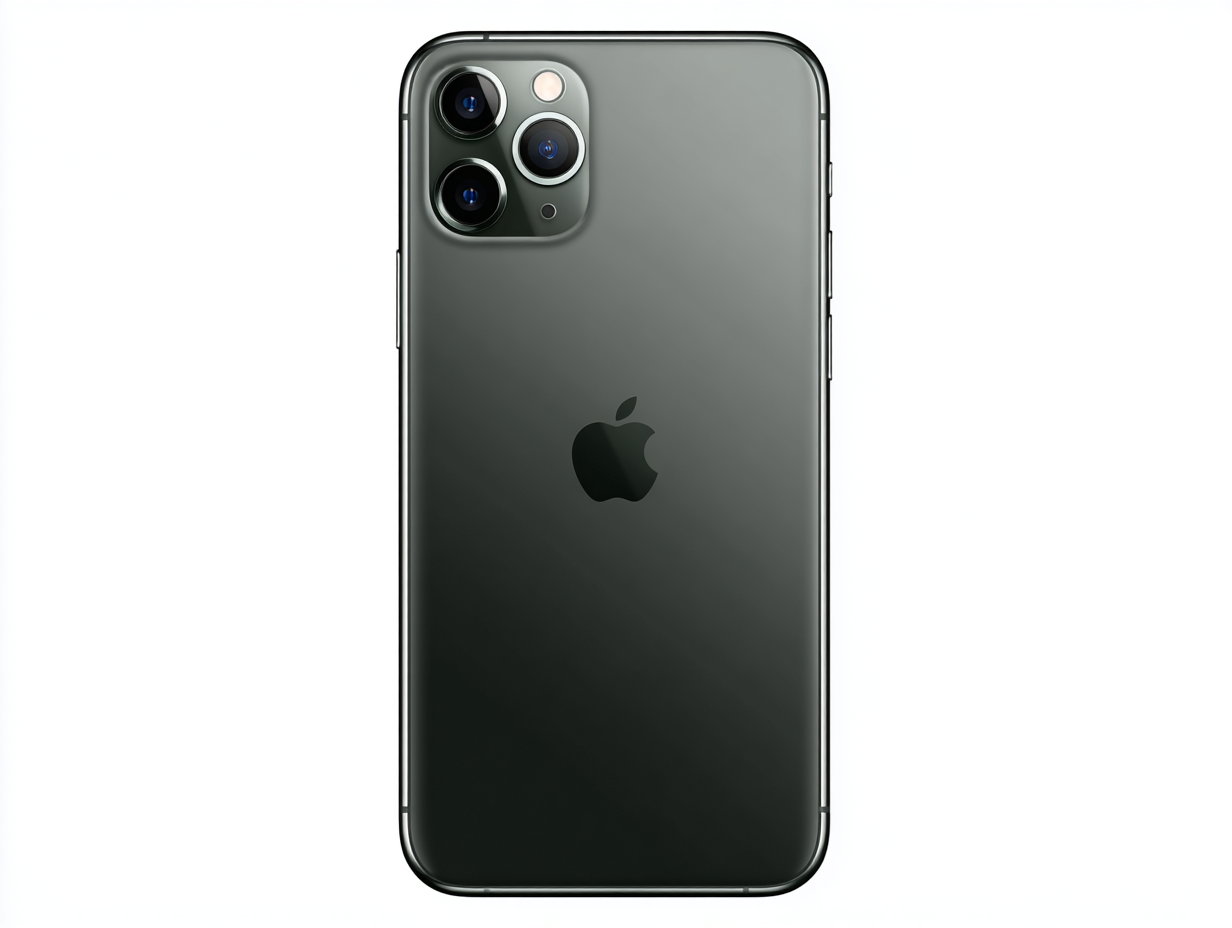
If you updated to iOS 26 or bought a new iPhone, several useful features stay hidden until you change a few settings. Here’s how to set it up now.
Your iPhone may look the same as before, but with the iOS 26 update, Apple has made a lot of changes that you can’t see until you turn them on. Apple has added new controls, visual options, and daily tools that need a few minutes of setup. If you skip this step, you’ll miss out on features designed to make daily use easier. Here’s a quick walkthrough to help new and existing iPhone users get started the right way.
Set up the Lock Screen
Press and hold the Lock Screen to edit it. Choose the clock font and colour, enable the Glass effect, and resize the clock by dragging its corner. While selecting a wallpaper, try Spatial Scene to add motion to supported photos. Place widgets where they suit your routine and adjust Control Centre buttons for faster access.
Change the Home Screen look
Press and hold the Home Screen, tap Edit, then select Customise. iOS 26 offers Clear, Tinted, and updated Default icons. Clear icons let the wallpaper show through, while Tinted icons follow a single colour theme. You can also match icons with your device or case colour.
Use Visual Intelligence on screenshots
Take a screenshot and tap Ask, Search, or Highlight to Search. This helps identify objects or get more details using tools like Google Image Search or ChatGPT. The feature works on supported iPhones with Apple Intelligence.
Turn on Call Screening
Open Settings, go to Phone, and enable Call Screening. Unknown callers must state their name and reason before the phone rings. Spam call and voicemail filters are also available here.
Add chat backgrounds in Messages
Open a conversation, tap the contact name, and choose Backgrounds. Pick colours, photos, presets, or create one using Image Playground. You can disable backgrounds in Settings if needed.
Enable Live Translation
In Messages, tap a contact name and switch on Automatically Translate. Messages translate in real time. The feature also works during calls, FaceTime captions, and in-person conversations using supported AirPods.
Create a Genmoji
Open Messages, tap the emoji icon, and select Genmoji. Combine emojis or describe one to create a custom version.
Explore the Games app
The new Games app brings App Store and Apple Arcade titles together and supports challenges and shared scores.
Adjust ringtones and alarm snooze
Find new ringtone options in Settings under Sounds and Haptics. Set alarm snooze times between one and fifteen minutes in the Clock app.
Choose a Safari layout
Safari offers a Compact tab view. Users can switch layouts in Settings for a more comfortable browsing experience.